 Posted by
Email verification through Zapier solves a specific and common problem: contacts enter your CRM, email platform, or spreadsheet from multiple sources simultaneously, such as HubSpot form submissions, Salesforce lead imports, Typeform entries, and LinkedIn exports; and there is no single entry point where a developer can add a real-time API check. Zapier fills that gap by automatically running verification on every new contact, regardless of where it came from, without requiring any code changes to the source platforms.
This guide covers seven practical Zapier email verification workflows, each mapped to common trigger sources. It includes a step-by-step guide to the core workflow, a conditional-logic framework for handling each verification result, and a comparison of Zapier and real-time API verification, so you can choose the right method for each use case.
Quick Answer: How Does Email Verification with Zapier Work?
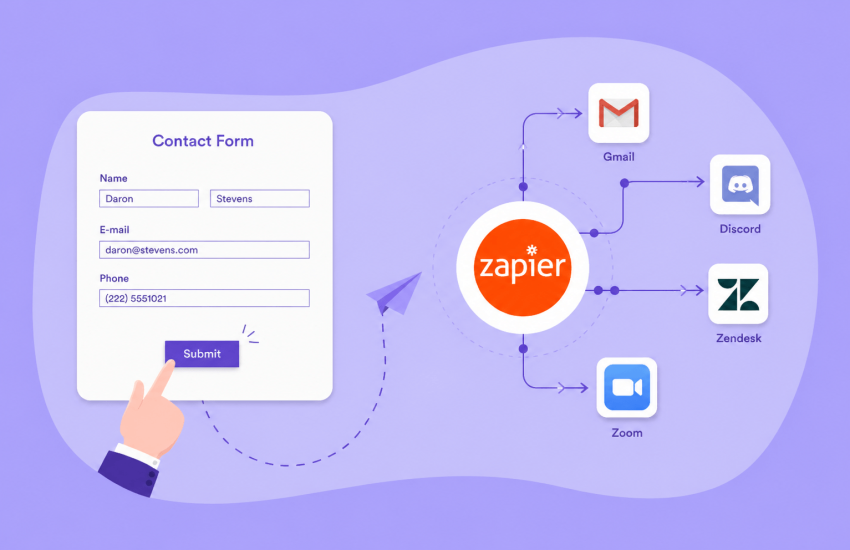
A Zapier email verification workflow connects a trigger app, such as HubSpot, Salesforce, or a form tool, to the MyEmailVerifier API as an action. When the trigger fires, for example, when a new contact is created, Zapier sends the email address to MyEmailVerifier, receives the verification status in the response, and uses that status to route the contact through a conditional logic path. Valid contacts proceed to their intended destination. Invalid, disposable, and spam-trap contacts are automatically suppressed, tagged, or flagged.
Zapier verification differs from a real-time API check mainly in timing. Zapier runs verification after the trigger event and after a record has been created in HubSpot or Salesforce. Once the verification result comes back, Zapier updates the record. It cannot block invalid addresses before creation, but can suppress or tag them within seconds, before they become part of any campaign or sequence.
What Zapier Email Verification Can and Cannot Do
Understanding the scope of Zapier verification prevents building workflows with misaligned expectations.
What it can do:
- Ensure that every new contact added to your CRM or email platform is instantly verified, regardless of source.
- Automatically write verification status to each contact record as a custom field or tag, keeping your database clean and organized.
- Prevent invalid contacts from entering your email marketing by setting opt-out flags the moment they are detected.
- Direct verified and unverified contacts down separate workflow paths for immediate, targeted handling.
- Automatically alert your team whenever high-risk contacts are detected, so issues are addressed quickly.
- Keep email lists in tools like Google Sheets or Airtable clean with continuous verification.
- Manage email verification seamlessly across all connected platforms using a single MyEmailVerifier integration.
What it cannot do:
- Block an invalid address from being submitted in a form or at checkout; the record is created before Zapier runs.
- Replace real-time API verification at the point of user input for use cases that require blocking.
- Process verification synchronously inside a user-facing form flow
If blocking at submission is required, use real-time API integration instead. The Zapier and API methods work together. For more details about when to use each method, see the end of this guide or read the guide on real-time email verification API integration.
The Seven Most Useful Zapier Email Verification Workflows
Zapier email verification involves multiple workflow types, each defined by its trigger source. Every distinct source where contacts enter requires its own Zap. While these Zaps differ by platform, they all follow the same process: trigger, verification action, and conditional routing.
|
Workflow |
Trigger App | Trigger Event | What the Workflow Does |
|---|---|---|---|
|
1 |
HubSpot | New Contact |
Verifies every new HubSpot contact automatically. Writes verification status to a custom property. Suppresses Invalid, Disposable, and Spam Trap contacts from marketing email. |
| 2 | Salesforce | New Lead |
Verifies every new Salesforce lead. Updates a custom verification status field. Sets Do Not Email for Invalid and Spam Trap results. Optionally notifies the assigned sales rep. |
|
3 |
Typeform | New Entry | Verifies the email address from every Typeform submission before routing the lead to a CRM or email list. Invalid results trigger an alternative path or notification. |
| 4 | Google Sheets | New or Updated Row |
Verifies email addresses added to a Google Sheet used as a contact collection tool or import staging area. Write the verification status in an adjacent column. |
|
5 |
Mailchimp | New Subscriber | Verifies every new Mailchimp subscriber. Tags subscribers with verification status. Unsubscribes or archives contacts returning Invalid, Disposable, or Spam Trap status. |
| 6 | WooCommerce | New Customer |
Verifies the billing email of every new WooCommerce customer after order creation. Tags customer accounts based on verification results. Notifies the fulfillment team of invalid results. |
|
7 |
Pipedrive | New Person |
Verifies every new Pipedrive contact. Updates a custom verification field on the Person record. Mark invalid contacts as Do Not Contact in Pipedrive. |
All seven workflows use the same MyEmailVerifier action step and the same conditional logic framework. However, each workflow differs in its trigger source, making the adaptation process straightforward once the core workflow is built and tested.e.
How to Build the Core Zapier Email Verification Workflow: Step by Step
The steps below describe a universal workflow that works for all seven trigger sources. Only the trigger step varies by platform. Every other step is the same.
Step 1: Connect MyEmailVerifier to Zapier
- Log in to Zapier and navigate to Apps. Search for MyEmailVerifier in the app directory.
- Click Connect and use your MyEmailVerifier API key to authenticate. You can find your API key in the MyEmailVerifier dashboard under Account Settings. All accounts receive 100 free API requests per day, with no credit card required.
- Test the connection by sending a verification request for a known valid address and confirming that the result is returned correctly.
Step 2: Create a New Zap and Set the Trigger
- Click Create Zap in the Zapier dashboard.
- Select your trigger app from the seven options in the workflow table above, or any other platform where contacts enter your stack.
- Select the trigger event. For CRM platforms, this is typically New Contact, New Lead, or New Person. For form tools, this is New Entry or New Submission. For spreadsheets, this is New or Updated Row.
- Connect your trigger account and set up the required filters. These may include a specific HubSpot pipeline, a Typeform form ID, or a specific Google Sheet.
- Test the trigger by loading a sample record from your connected platform. Confirm the email address field is being returned in the trigger data.
Step 3: Add the MyEmailVerifier Verification Action
- Add an action step after the trigger. Select MyEmailVerifier as the action app.
- Select the Verify Email action.
- Map the email address field from the trigger data to the MyEmailVerifier action. Use dynamic field mapping to insert the trigger email address.
- Test the action with the sample trigger data. Confirm the result includes a status field, catch-all flag, disposable flag, and any other relevant flags for the test address.
Step 4: Add Conditional Logic Paths
- Add a Paths by Zapier step after the verification action. This creates branching logic so different paths handle different verification results.
- Configure Path A for Valid results: Set the condition to continue if the MyEmailVerifier status field equals Valid or Greylisted. Add the downstream action for this path, such as adding a tag in HubSpot, updating a CRM field, or routing to an email sequence.
- Configure Path B for Invalid, Disposable, and Spam Trap results: Set the condition to continue if the status field equals Invalid, Disposable, or Spam Trap. Add the suppression actions for this path.
- Configure Path C for Catch-All and Role Address results: Set the conditions for these statuses, and add a tagging or flagging action to mark these contacts for manual review without automatically suppressing them.
- At the start of every path, add a write-back action to update the verification status field on the original contact record. This ensures that every contact has a recorded verification status, regardless of the path.
Step 5: Configure the Suppression Actions in Path B
For contacts labeled Invalid, Disposable, or Spam Trap, suppression actions vary by destination platform.
- HubSpot: Add a HubSpot Update Contact action that sets Marketing Email Opt-In to Not Opted In and updates the Email Verification Status property to the returned status value.
- Salesforce: Add a Salesforce Update Record action that sets the Email Opt Out field to true and updates the custom Email Verification Status field.
- Mailchimp: Add a Mailchimp Update Subscriber action that sets the subscriber status to Archived or Unsubscribed, or adds the contact to a suppression tag.
- Google Sheets: Add an Update Row action to write the verification status to the status column. Optionally, highlight the row using a color code to mark suppression status.
- Any platform: Add a notification action to send a Slack message or email alert to your team for Spam Trap results. These require immediate investigation into how the address entered the database.
Step 6: Test the Full Workflow End to End
- Test with a known invalid address and confirm that the Path B actions fire correctly, that suppression is applied, and that the verification status is written to the contact record.
- Test with a known valid address. Confirm that Path A actions work, the contact is routed as intended, and the Verified status is written to the record.
- Test with a disposable email address using a service such as Mailinator or TempMail and confirm Path B handles it correctly.
- Activate the Zap once all three test paths have returned the expected results.
How to Handle Each Verification Result in Zapier Conditional Logic
The conditional paths in your Zap must map to the correct downstream action for every possible verification status. The table below provides the recommended action path and platform update for each result.
| Status | Risk Level | Recommended Zapier Action Path | CRM or Platform Update |
|---|---|---|---|
|
Valid |
None | Continue path: route contact to intended destination (CRM, email list, sequence). No intervention required. | Write Verified to the custom status field. No suppression. |
| Invalid | High | Diverge path: skip the primary destination. Trigger an alternative action, such as a notification to the ops team or a log entry in a review sheet. |
Write Invalid to the status field. Set the ” Do Not Email or Do Not Contact flag in the destination platform. |
|
Catch-All |
Moderate | Continue path with a tag. Route to the primary destination, but apply a Catch-All tag so the contact can be segmented separately later. | Write Catch-All to the status field. No suppression. Flag for manual review if cold outreach is planned. |
| Disposable | High | Diverge path: same handling as Invalid. Skip the primary CRM destination or archive the contact on creation. |
Write Disposable to the status field. Apply the same suppression as Invalid. |
|
Spam Trap |
Critical | Diverge path: do not route to any active list or sequence. Trigger an escalation notification to marketing ops for immediate review. | Write Spam Trap to the status field. Set Do Not Email immediately. Alert marketing ops team. |
| Greylisted | Low | Continue path: no special handling required. Route to primary destination as normal. |
Write Greylisted to the status field. No suppression. Include in all standard campaigns. |
|
Role Address |
Low to Moderate | Continue path with a tag. Route to primary destination with a Role Address tag for later segmentation. |
Write Role Address to the status field. Exclude from personalized outreach sequences. |
Note on Unknown status: MyEmailVerifier may return an Unknown status for addresses where the mail server did not respond within the verification timeout window. Route Unknown addresses are routed to a review path rather than automatically suppressed. Re-verification after a short delay typically resolves the status in most cases.
Read more: Understanding Email Verification Results: Deliverable, Risky, Unknown, and How to Act on Them
Connecting Multiple Trigger Sources to One MyEmailVerifier Integration
If contacts enter from several sources, HubSpot, Salesforce, Typeform, or Google Sheets, you only need one MyEmailVerifier account and API key. These can power any number of Zaps across platforms at once.
The per-verification cost of $0.0025 applies to each API request regardless of which Zap triggered it. Credits are drawn from the same pool. If you have 100,000 contacts entering from five different sources in a month, the total verification cost is the same as if all 100,000 came from a single source.
Credits never expire. If you purchase a block of credits for a large import in Q1 and use the remaining balance across smaller ongoing Zap-triggered verifications in Q2 and Q3, the credits are available at no additional cost. For pricing context and bulk credit options, see the guide on email verification API pricing.

Zapier vs Real-Time API Verification: When to Use Each
The choice between Zapier automation and direct API integration is not an either-or decision. Both methods have the same per-verification cost and use the same underlying verification engine. The difference is in timing, control, and whether blocking invalid entries is possible.
| Dimension | Zapier Automation | Real-Time API Integration |
|---|---|---|
|
Technical requirement |
Zapier account only. No code required. Configurable through Zapier’s visual workflow builder. | REST API integration requires developer implementation in the application or form handling code. |
| When verification runs | After the trigger event completes. For a new contact, the record is already created in the destination platform before verification runs. |
At the point of submission, before any record is created. Invalid addresses are blocked before they enter any database. |
|
Can it block invalid submissions? |
No. Zapier runs post-event. It can suppress, tag, or notify based on verification results, but the original record already exists. | Yes. A failed verification result prevents form submission or record creation entirely. Invalid addresses never enter the system. |
| Best use case | CRM contacts added from imports, manual entry, or integrations where blocking is not feasible. Ongoing verification of a growing database from multiple sources. |
Web forms, registration pages, checkout flows, and any point where the user submits an email address directly. Maximum accuracy at the point of entry. |
|
Verification speed |
Asynchronous. Verification runs within seconds to minutes of the trigger event, depending on the load of the Zapier task queue. |
Synchronous. The verification result is returned before the user’s submission is processed, typically in under one second. |
|
Cost per verification |
$0.0025 per verification via MyEmailVerifier, same as all other methods |
$0.0025 per request via MyEmailVerifier API, same rate as Zapier workflow |
The recommended approach for most stacks: Use real-time API verification at every point where a user directly submits an email address through a form or registration flow. Use Zapier verification for all other contact entry points where direct API integration is not feasible: CRM imports, enrichment tool outputs, manual entry, spreadsheet uploads, and any source where a developer hook cannot be placed at the entry point. Together, the two methods provide complete coverage across both user-submitted and operations-sourced contact data.
Frequently Asked Questions
How do I connect MyEmailVerifier to Zapier?
Go to Zapier and search for MyEmailVerifier in the app directory. Click Connect, then authenticate using your MyEmailVerifier API key, available in the MyEmailVerifier dashboard under Account Settings. Once connected, MyEmailVerifier is available as an action step in any Zap. Select the Verify Email action, map the email address from your trigger data to the action input, and Zapier will return the verification status in the response data for use in subsequent steps and conditional paths.
Can I automatically verify emails from my CRM using Zapier?
Yes. The most common setup uses a New Contact or New Lead trigger in the CRM (HubSpot, Salesforce, Pipedrive, or similar) to trigger a MyEmailVerifier verification action. The Zap fires automatically every time a new contact is created in the CRM, sends the email address to MyEmailVerifier, receives the verification status, and updates the contact record with the result. Conditional logic paths in the Zap then apply suppression or tagging based on the returned status. The full workflow requires no developer resources and can be built entirely within Zapier’s visual interface.
What Zapier triggers can I use with email verification tools?
Any Zapier trigger that returns an email address field in its output data can be used to trigger email verification. The most commonly used triggers are: New Contact and New Lead in HubSpot, Salesforce, Pipedrive, and Zoho CRM; New Subscriber in Mailchimp, ActiveCampaign, and Klaviyo; New Entry in Typeform, Gravity Forms, JotForm, and Webflow; New or Updated Row in Google Sheets and Airtable; New Customer in WooCommerce and Shopify; and New Person in Pipedrive. The same MyEmailVerifier action step and conditional-logic framework apply to all of these triggers.
How do I set up an automated email cleaning workflow with Zapier?
Build a Zap with your CRM or email platform as the trigger using a New Contact or New Subscriber event. Add a MyEmailVerifier Verify Email action and map the email address from the trigger data to the action input. After the action, add a Paths by Zapier step with separate paths for Valid results (continue to the destination), Invalid results (apply suppression), Spam Trap results (apply suppression), and Catch-All results (apply a tag for manual review). In each path, add an update action that writes the verification status back to the contact record. Test all three paths before activating the Zap.
Does Zapier email verification work in real time?
Zapier verification runs asynchronously, not synchronously in the user-facing sense. When a trigger fires, Zapier processes the tasks in its queue, so the verification typically completes within seconds to a few minutes of the trigger event, depending on the current load of the Zapier task queue. The verification result is returned and applied to the contact record quickly, but the contact record is created before the verification runs. This means Zapier cannot block invalid addresses at the moment of form submission. For use cases requiring real-time blocking at the point of entry, the MyEmailVerifier REST API integrated directly into the form endpoint is the correct approach.
Automated Verification Is a Multiplier on Every Tool in Your Stack
Every platform in your marketing and sales stack that holds email addresses benefits from verification. HubSpot campaigns, Salesforce sequences, Mailchimp automations, and Typeform lead flows all perform better when the underlying email data has been verified. Zapier makes it possible to apply that verification benefit across all of them simultaneously, without building a custom integration for each platform and without requiring any developer resources.
One MyEmailVerifier integration. One API key. $0.0025 per verification across any number of Zaps and trigger sources. Credits that never expire. And 100 free daily requests to build, test, and activate your first workflow before spending anything.
Connect MyEmailVerifier to Zapier today. Start with the HubSpot or Salesforce workflow using free daily credits.

James P. is Digital Marketing Executive at MyEmailVerifier. He is an expert in Content Writing, Inbound marketing, and lead generation. James’s passion for learning about people led her to a career in marketing and social media, with an emphasis on his content creation.