Complete Workflow Overview
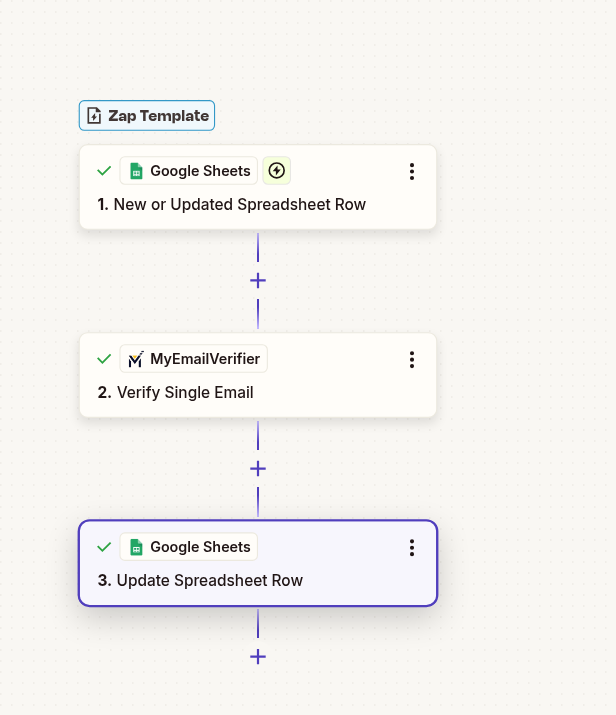
Automatically verify email addresses when new rows are added to Google Sheets and update the row with verification status. Perfect for cleaning contact lists, validating imported data, and maintaining spreadsheet quality.
Use This TemplateEmail added to spreadsheet
Verify email in real-time
Write status & attributes back
Add emails to your sheet and they're automatically verified. No more uploading/downloading CSV files or manual checking.
Multiple team members can add emails to the shared sheet. All entries are automatically validated without extra effort.
See validation status and email attributes instantly. Identify free emails, disposables, and role-based addresses. Use Google Sheets' built-in filtering and charting for data quality reports.
Set up your Google Sheet with these columns for best results:
Create a properly structured spreadsheet:
Set up the Zapier trigger:
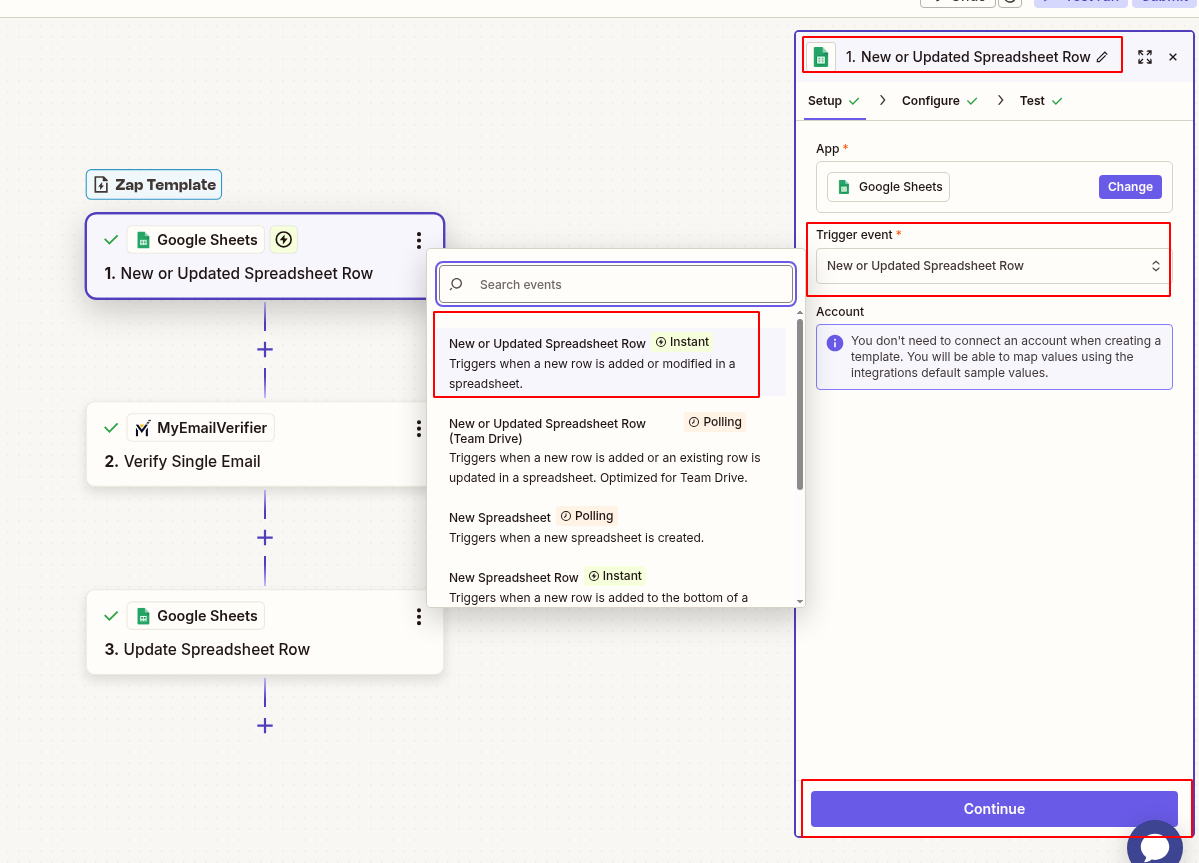
Prevent duplicate verifications:
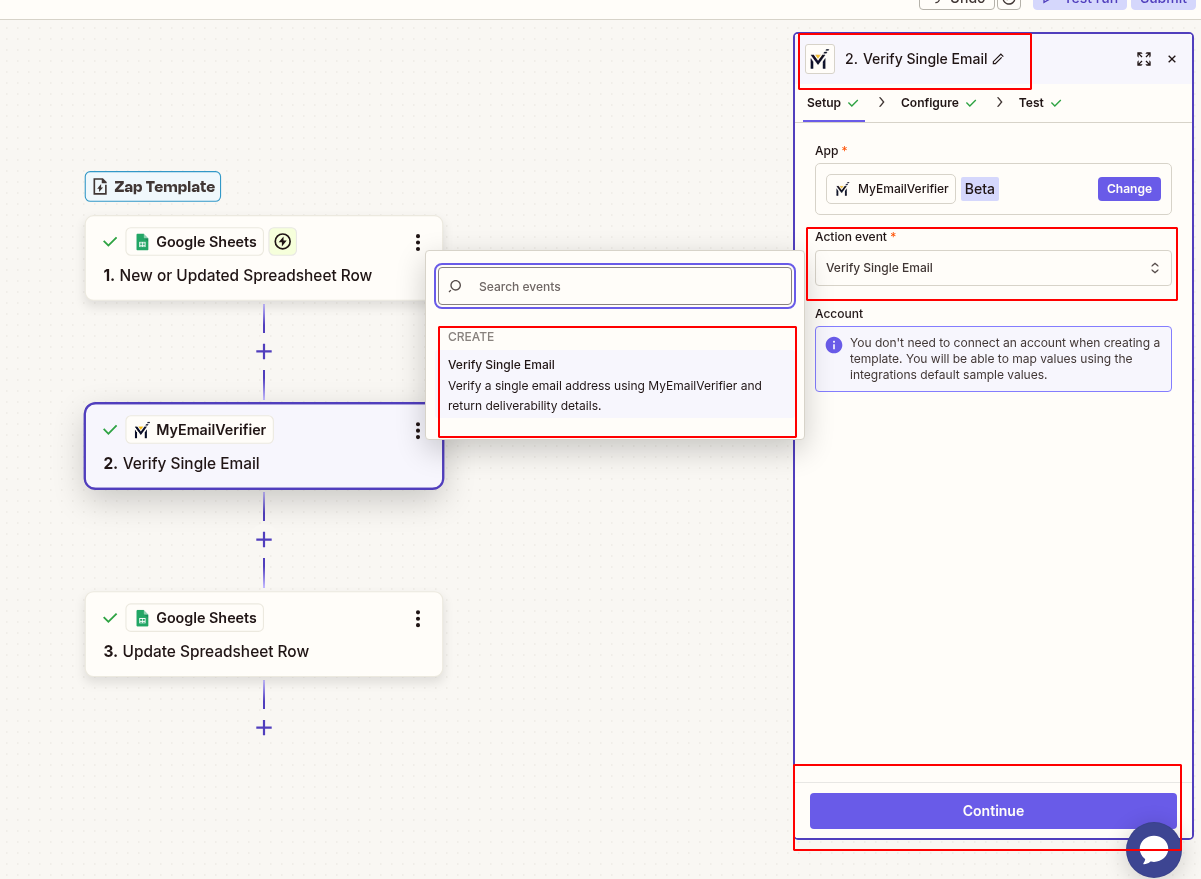
Verify the email address:
Write verification results back to the same row:
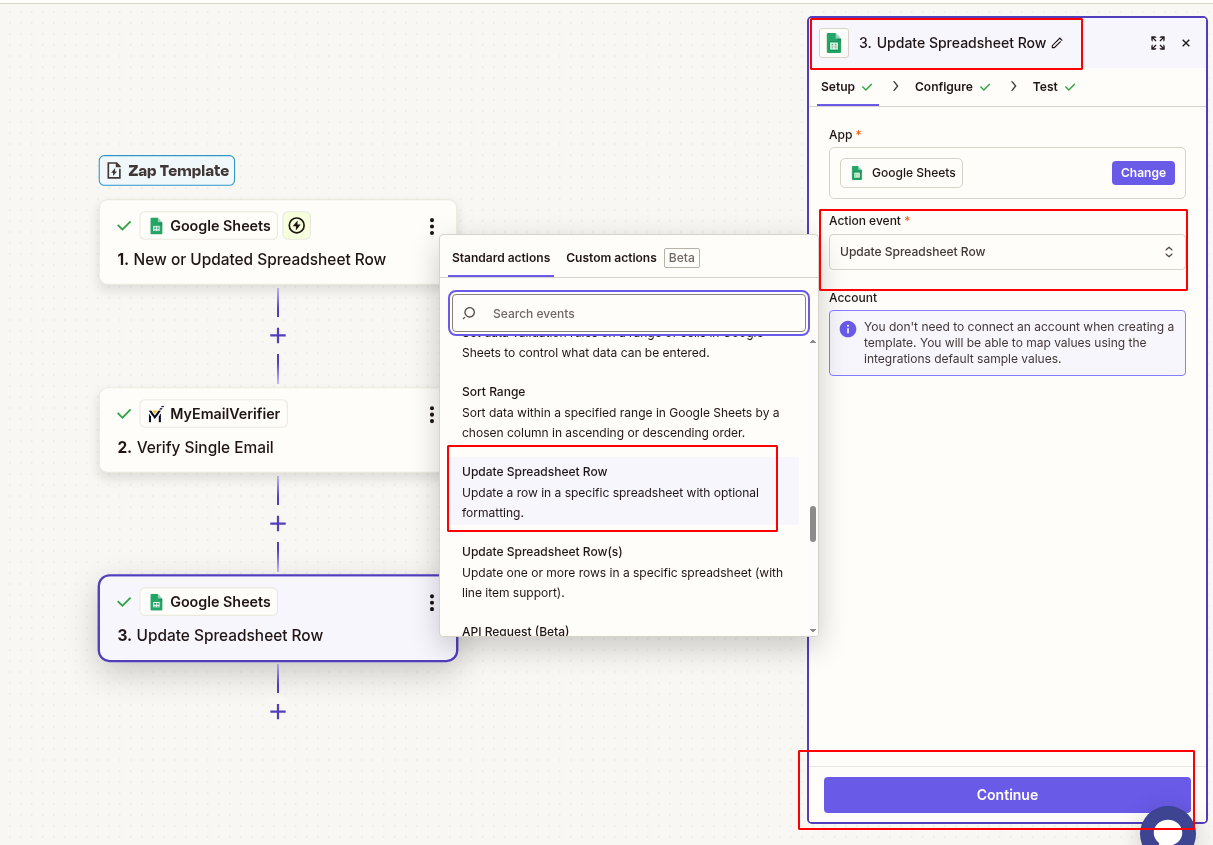
Make status visually clear in Google Sheets:
Verify everything works:
Problem: Same email added multiple times
Solution: Add a "Lookup Spreadsheet Row" step before verification to check if email already exists. Skip if found, verify if new.
Benefit: Save verification credits, avoid redundant processing.
Setup: Add path logic - if status is "Invalid", copy row to "Invalid Emails" sheet and delete from main sheet.
Use Case: Keep main sheet clean with only valid/risky emails.
Benefit: Cleaner workspace, organized data management.
Setup: Create a view/filter for emails verified >90 days ago. Run scheduled Zap to re-verify old entries.
Why: Email deliverability changes over time. Re-verify periodically.
Benefit: Maintain data freshness, catch emails that become invalid.
Setup: Add Slack/Email notification when risky or invalid email is added by team member.
Use Case: Sales team gets immediate feedback on data quality.
Benefit: Faster correction, improved data hygiene awareness.
Scenario: Sales team maintains shared Google Sheet of prospects found through various channels (LinkedIn, events, cold outreach).
Workflow: Reps add prospect info including email. Zap verifies email automatically and updates validation status with email attributes. Invalid emails flagged for manual review.
Benefit: Team works from one source of truth with confidence. No time wasted on bad emails.
Scenario: Import registration data from various event platforms into Google Sheets for unified management.
Workflow: As registrations are added, emails are verified. Send confirmation emails only to valid addresses. Flag risky ones for manual contact.
Benefit: Reduce bounce rate on event communications, better attendee experience.
Scenario: Collect newsletter signups from website, then bulk import to Google Sheets for review before adding to ESP.
Workflow: Import emails, verification runs automatically, export only "Valid" status emails to Mailchimp/SendGrid.
Benefit: Protect sender reputation, ensure compliance, higher engagement rates.
Scenario: Educational institution maintains graduate contact list for alumni communications and fundraising.
Workflow: Update alumni emails in shared sheet. Verification identifies outdated emails needing manual update.
Benefit: Better alumni engagement, successful fundraising campaigns, maintained relationships.
Free account with Google Sheets access
Free tier works, paid plan for faster updates
Active account with verification credits
Issue: Verification results written to different row
Solution: Ensure you're using the Row Number from trigger, not a fixed number. Zapier provides this automatically in most cases.
Issue: Same row verified repeatedly
Solution: Add Filter step checking if Status column is empty. Only continue if not yet verified.
Issue: Spreadsheet not appearing in Zapier dropdown
Solution: Ensure spreadsheet is in your Google Drive (not "Shared with me"). Move it to "My Drive" if needed.
Issue: Zap takes 15+ minutes to trigger
Solution: This is normal on Zapier free plan (15-min polling). Upgrade to paid plan for faster 1-5 minute triggers.
Set up in minutes and never manually verify emails in spreadsheets again.
Create This Zap View All Templates
Copyright © 2026 · MyEmailVerifier · All Rights Reserved