Google Forms → Email Verification → Google Sheets

Automatically verify email addresses from Google Forms submissions and add only valid emails to Google Sheets.

5 min setup Instant verification No coding
Use This Template

How This Workflow Works
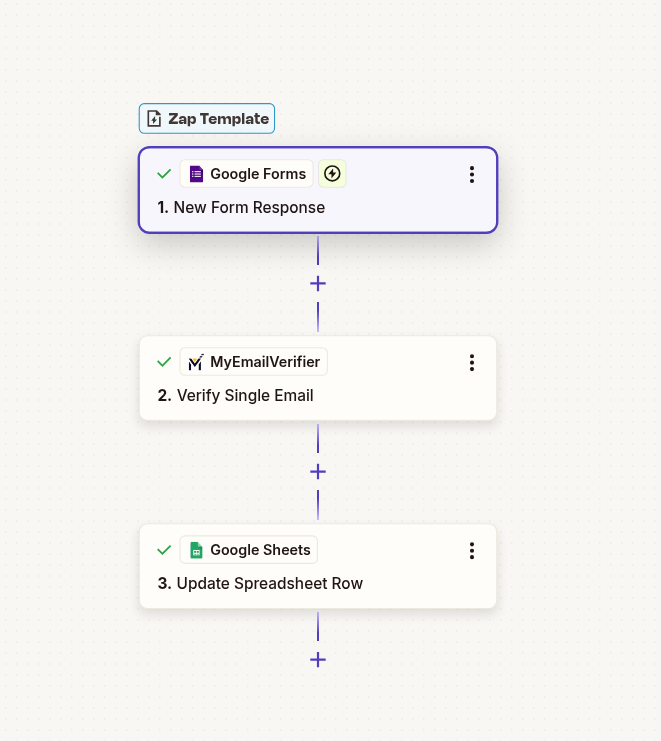
Google Forms to Sheets verification workflow
1. Google Forms Trigger

When a new response is submitted to your Google Form

2. MyEmailVerifier Action

Email address is automatically verified and validated

Returns:
{ "status": "valid", "reason": "Accepted email", "score": 98, "free_email": true, "disposable": false, "role_account": false, "catch_all": false }
3. Zapier Filter (Optional)

Only continue if status = "valid"

4. Google Sheets Action

Add verified email and form data to your spreadsheet
Setup Instructions

Follow these simple steps to get started

1Create Your Google Form

Make sure your Google Form has an email field. This is what you'll verify.

  • Go to Google Forms and create a new form
  • Add a "Short answer" question for email
  • Enable "Response validation" → "Regular expression" → "Email"
  • This ensures basic format checking before Zapier triggers

2Connect Google Forms to Zapier

Set Google Forms as your trigger application.

  • Click "Use This Template" or create a new Zap
  • Search for "Google Forms" as the trigger app
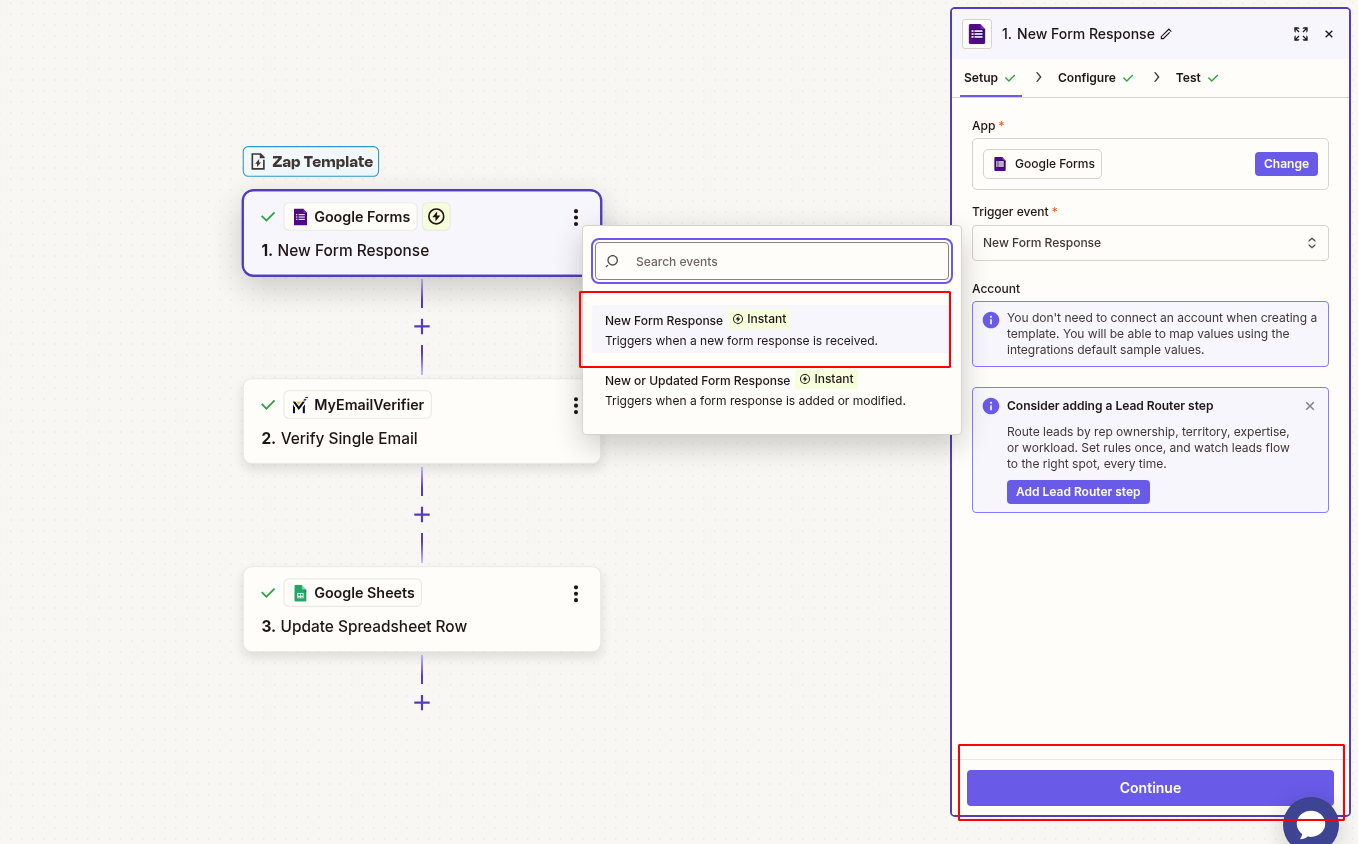
  • Choose trigger: "New Response in Spreadsheet"
  • Connect your Google account and select your form
  • Test the trigger to pull sample data
Add Google Form as trigger in Zapier

3Add MyEmailVerifier Action

Configure the email verification step.

  • Click the + button to add an action
  • Search for "MyEmailVerifier"
  • Choose action: "Verify Single Email"
  • Connect with your API key (found in MyEmailVerifier dashboard)
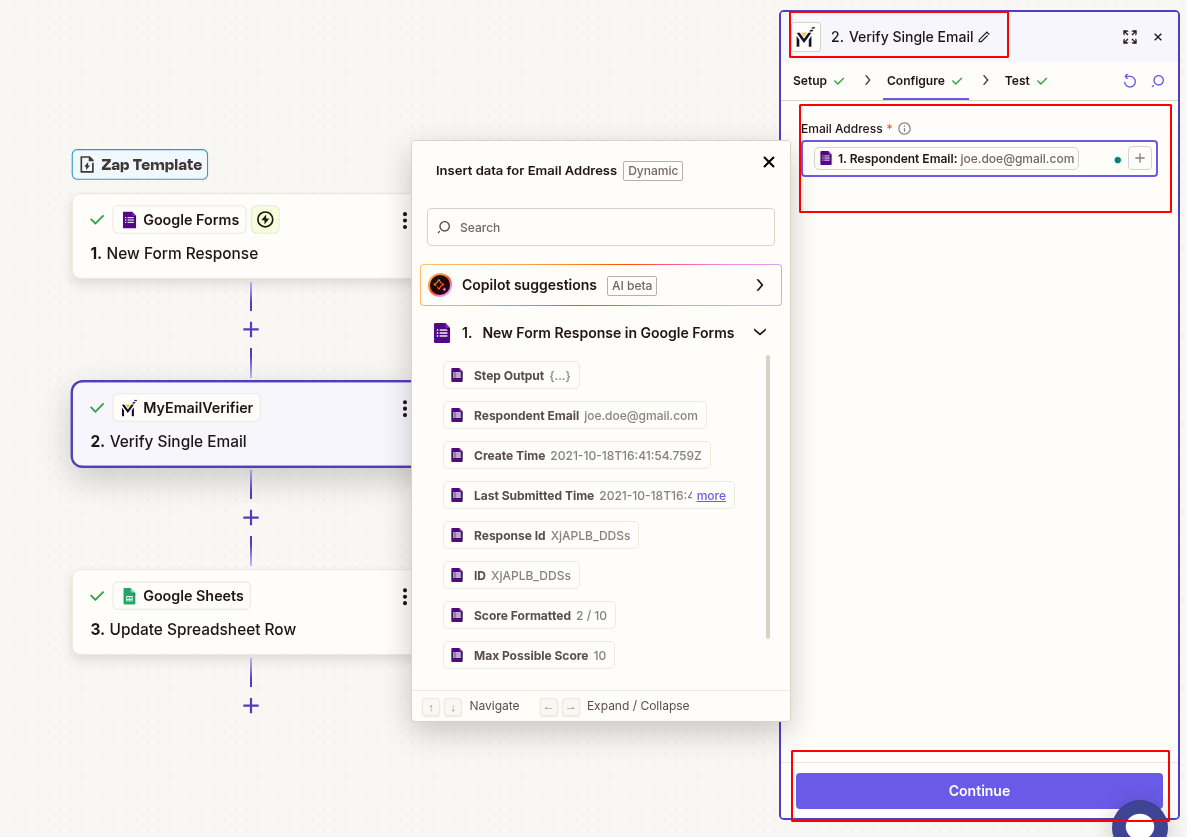
  • Map the email field from step 1 to the "Email" field
  • Test the action to see verification results
Add MyEmailVerifier action and map form output to Email Address column

4Add Filter (Recommended)

Only add valid emails to your sheet.

  • Add a "Filter by Zapier" step
  • Set condition: "Status" (from step 2) "Exactly matches" "valid"
  • This prevents invalid emails from being added to your sheet
  • Alternative: Use "is in" and include "valid,catchall" if you want both

5Connect Google Sheets

Save verified data to your spreadsheet.

  • Add Google Sheets as an action
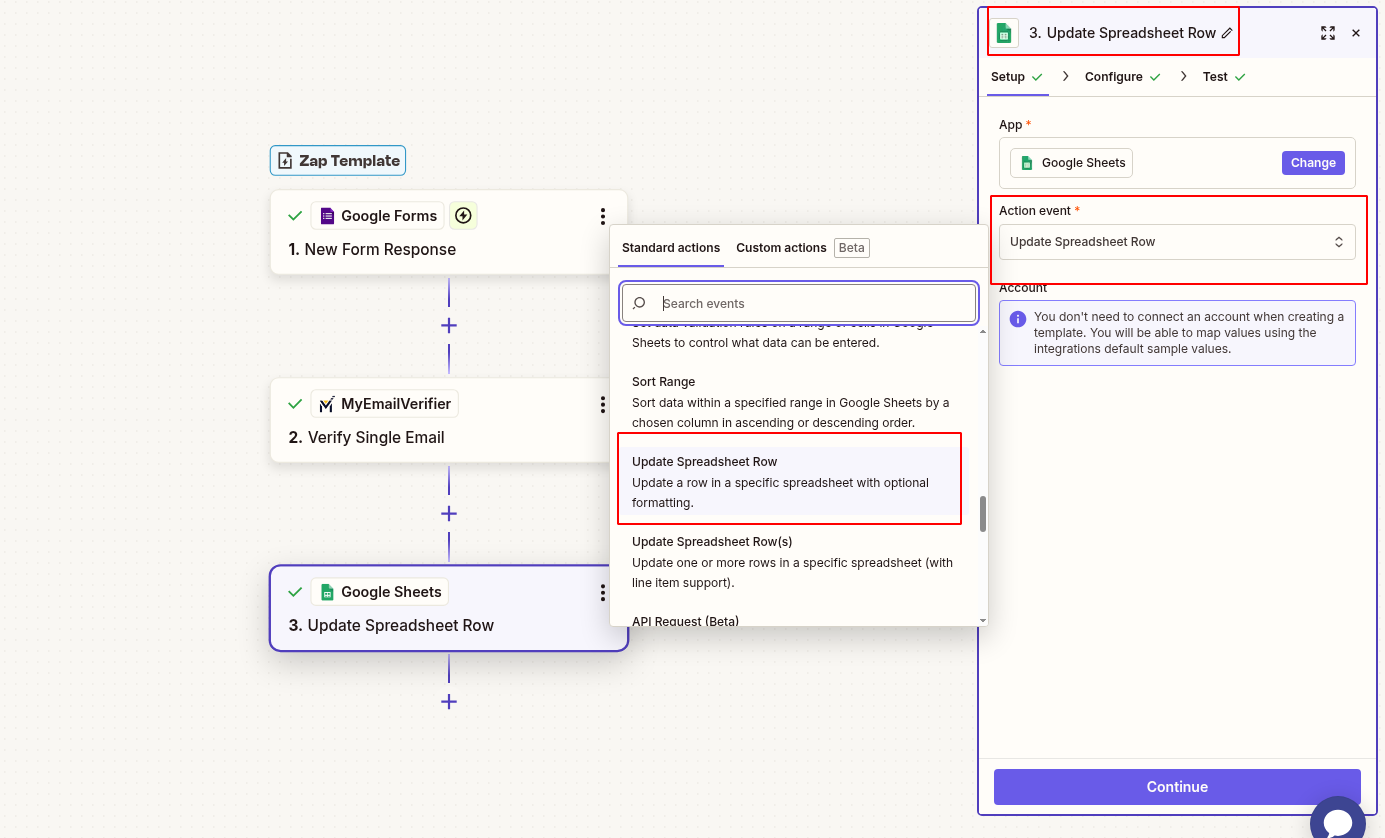
  • Choose action: "Create Spreadsheet Row"
  • Select your destination spreadsheet and worksheet
  • Map fields from the form AND verification results
  • Include useful fields like: email, status, score, free_email, disposable
Set MyEmailVerifier output to Google Sheets to update row with verification results

6Test & Activate

Make sure everything works perfectly.

  • Click "Test & Continue" on each step
  • Submit a test form response to trigger the workflow
  • Check your Google Sheet to see if the data appears
  • Turn on your Zap!
  • Monitor the first few runs to ensure accuracy

Why Use This Template?

Perfect for lead generation, event registration, and surveys

Data Quality Protection

Prevent typos and fake emails from cluttering your database

Filter out disposable and temporary email addresses

Identify role-based emails (info@, support@) for better targeting

Time Savings

Automatic validation - no manual email checking needed

Real-time verification as forms are submitted

Instant routing to the right destination based on email quality

Better Analytics

Track email quality scores alongside form responses

Identify which traffic sources provide quality leads

Segment free vs. corporate emails for targeted follow-up

Cost Efficiency

Avoid paying for invalid contacts in your email marketing platform

Reduce bounce rates and protect your sender reputation

Lower email marketing costs by maintaining clean lists

Perfect For

Event Registration

Verify attendee emails to ensure event communications are delivered successfully.

Lead Generation

Collect and validate leads from landing pages and marketing campaigns.

Survey Responses

Validate survey participant emails for follow-up communications and prize distribution.

Newsletter Signups

Ensure only real subscribers join your email newsletter list.

Content Downloads

Verify emails from users downloading ebooks, whitepapers, and resources.

Course Registration

Validate student emails for course access and communication.

Pro Tips & Advanced Setup

Multi-Path Routing

Create different paths based on verification results:

  • Valid emails: Add to Google Sheets + Send to Mailchimp
  • Catch-all emails: Add to separate "Review" sheet
  • Invalid emails: Log to "Rejected" sheet for analysis
Advanced Filtering

Use verification data for smart segmentation:

  • Flag free emails (Gmail, Yahoo) vs. corporate emails
  • Identify role accounts for B2B qualification
  • Filter disposable emails to prevent spam signups
  • Use quality scores for lead prioritization
Alert Notifications

Get notified about important submissions:

  • Send Slack alerts for high-score leads
  • Email your team when corporate emails are submitted
  • Track invalid submission patterns to detect form abuse
Data Enrichment

Combine with other Zapier apps:

  • Use Clearbit to enrich corporate emails with company data
  • Add Hunter.io to find additional contacts
  • Connect to CRM for immediate lead creation

Frequently Asked Questions

The number of verifications depends on your MyEmailVerifier plan and Zapier plan. Each form submission that triggers the workflow counts as one task in Zapier and consumes one verification credit from your MyEmailVerifier account. Check both platforms' pricing to determine your limits.

Your Zap will pause if your MyEmailVerifier credits run out. You'll receive a notification from Zapier. Simply add more credits to your MyEmailVerifier account, and your Zap will resume automatically. We recommend setting up low-balance alerts in your MyEmailVerifier dashboard.

Yes! If your Google Form collects multiple emails (e.g., personal and work email), you can add multiple MyEmailVerifier steps to your Zap - one for each email field. Each verification will consume one credit.

Most verifications complete within 2-5 seconds. The entire Zap (trigger + verification + Google Sheets update) typically completes in under 10 seconds, meaning data appears in your sheet almost instantly after form submission.

Ready to Set Up This Workflow?

Get started in 5 minutes with our pre-built template

Use This Template Browse More Templates
MyEmailVerifier

Copyright © 2026 · MyEmailVerifier · All Rights Reserved