 Posted by
Millions of businesses trust Mailchimp for email marketing. But even the best campaigns fail if your list is full of bad email addresses.
You have probably seen that dreaded “cleaned” status next to some of your contacts. That means Mailchimp already removed them because they bounced. The problem? By then, the damage to your sender’s reputation is already done.
The more innovative approach is to clean your list before Mailchimp has to do it for you.
According to MailerLite’s 2025 benchmark report, the average email open rate reached 43.46% in 2025. But you will never hit those numbers if your emails are bouncing instead of landing in inboxes.
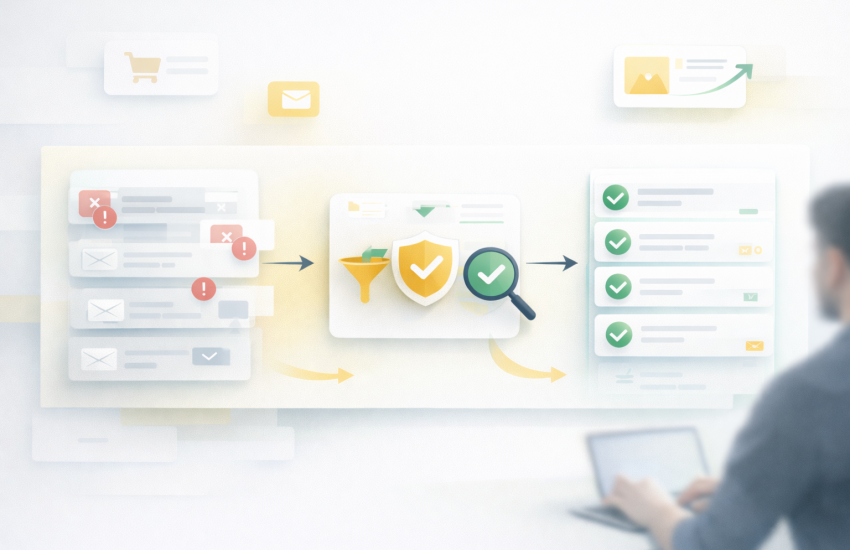
In this guide, you will learn three different methods to clean your Mailchimp list using myEmailVerifier. Choose the one that fits your workflow best.
Why Mailchimp List Cleaning Matters
Mailchimp has built-in protections. It automatically marks contacts as “cleaned” after a hard bounce or multiple soft bounces. It also has Omnivore, a system that flags suspicious lists before you send.
But these protections only work after something goes wrong.
Here is why proactive list cleaning is essential:
Mailchimp Charges Per Contact
Your Mailchimp plan is based on how many contacts you have. Invalid emails still count toward your total until they bounce. Why pay for addresses that will never receive your emails?
Bounces Hurt Your Reputation
Every bounce tells inbox providers like Gmail and Yahoo that you might be a spammer. Too many bounces and your emails start landing in spam folders, even for your valid subscribers.
Omnivore Can Block Your Campaigns
Mailchimp’s Omnivore system scans your list before sending. If it detects too many risky emails, it can block your entire campaign. You will see a warning and have to fix your list before you can send.
Cleaned Contacts Are Lost Forever
Once Mailchimp marks a contact as cleaned, you cannot email them again. They have to sign up fresh using your form. If that email was a real customer with a temporary issue, you have lost them.
The Bouncer 2026 email statistics report shows that a 1% increase in invalid emails can reduce inbox placement by up to 10%. That is a significant hit from a small percentage of bad addresses.
Method 1: Direct Integration (Easiest)
MyEmailVerifier has a direct integration with Mailchimp. You can connect your account, import your Audience, verify it, and export the clean list back to Mailchimp without downloading any files.
Here is how to set it up:
Step 1: Connect Your Mailchimp Account
Log in to your myEmailVerifier dashboard. Go to Integrations and find Mailchimp. Click Connect and enter your Mailchimp API key.
To get your API key from Mailchimp, go to Account Settings, then Extras, then API keys. Please create a new key and copy it.
Step 2: Select Your Audience
Once connected, you will see a list of your Mailchimp audiences. Select the one you want to clean.
Step 3: Choose Cleaning Type
You have two options:
- One Time Clean – Verify your entire list once
- Regular Cleaning – Set up daily or weekly automated cleaning
For most users, starting with a one-time clean makes sense. You can set up automation after you see the results.
Step 4: Configure Actions for Invalid Emails
Tell myEmailVerifier what to do with different email types:
- Invalid emails: Archive or delete from Mailchimp
- Catch all emails: Tag them or move to a separate segment
Step 5: Start Verification
Click Save Preferences, and the verification will begin. Depending on your list size, it can take anywhere from a few minutes to a few hours.
When it is done, your Mailchimp audience will automatically have the invalid emails removed or tagged based on your settings.

Method 2: Bulk Verification with CSV Export
If you prefer more control over the process, you can export your Mailchimp list, verify it separately, and import the clean results.
Step 1: Export Your Mailchimp Audience
In Mailchimp, go to Audience and select the list you want to clean. Click All Contacts, then Export Audience. Download the CSV file.
Step 2: Upload to myEmailVerifier
Go to myEmailVerifier and upload your CSV file. The system will automatically detect the email column. Click Start Verification.
Step 3: Download Verified Results
Once verification is complete, download your results. Each email will be marked as:
- Valid – Safe to keep in Mailchimp
- Invalid – Remove from Mailchimp
- Catch all – Risky, consider segmenting
- Disposable – Temporary emails, remove
- Role-based – Generic addresses like info@ or support@
Step 4: Remove Invalid Emails from Mailchimp
Take the list of invalid emails and archive or delete them in Mailchimp. You can do this by:
- Going to Audience and clicking All Contacts
- Using the search or import function to find the invalid emails
- Selecting them and choosing Archive or Delete
Archiving is recommended because it keeps a record. Deleted contacts are gone permanently.
Method 3: Automated Cleaning Schedule
For lists that grow constantly, manual cleaning is not practical. Set up automated cleaning to keep your Mailchimp list healthy without ongoing effort.
How Automated Cleaning Works
Using the Mailchimp integration, you can schedule myEmailVerifier to:
- Pull new contacts from Mailchimp daily or weekly
- Verify any new additions automatically
- Apply your predefined actions to invalid or risky emails
This is especially useful if you have signup forms, lead magnets, or integrations that add contacts to Mailchimp regularly.
Setting Up Automation
- Connect your Mailchimp account to myEmailVerifier (if not already done)
- Select Regular Cleaning instead of One-Time Clean
- Choose your frequency: daily or weekly
- Configure actions for invalid and catch-all emails
- Save and let it run in the background
You can stop or modify the automation anytime from your dashboard.
What to Do with Different Email Types
Not all verification results need the same treatment. Here is how to handle each type in Mailchimp:
Valid Emails
Keep these in your primary Audience. They are confirmed deliverable and safe to send.
Invalid Emails
Archive these immediately. They will hard bounce and trigger Mailchimp’s cleaning anyway. Better to remove them proactively and save your reputation.
Catch All Emails
These are tricky. Catch all domains accept all emails, so we cannot confirm if the specific mailbox exists.
Best practice: Create a segment in Mailchimp for catch-all emails. Send to them less frequently and monitor bounce rates. If bounces stay low, you can include them in regular campaigns.
Disposable Emails
These are temporary addresses from services like Mailinator or Guerrilla Mail. People use them to get past signup forms.
Archive them. They will never convert into real customers and often become invalid within hours.
Role-Based Emails
Teams, not individuals, typically manage addresses like info@, support@, or sales@. They often have higher spam complaint rates.
Tag them in Mailchimp and send only essential communications. Avoid promotional content for role-based addresses.
Best Practices for Mailchimp List Health
Cleaning is not a one-time task. Follow these practices to keep your Mailchimp audience healthy long term.
Enable Double Opt In
Mailchimp supports double opt-in on all lists. When someone signs up, they receive a confirmation email. Only confirmed subscribers are added to your Audience.
This catches typos like “gmial.com” and fake signups before they enter your list.
Authenticate Your Domain
Set up SPF, DKIM, and DMARC records for your sending domain. This tells inbox providers that Mailchimp is authorized to send on your behalf.
Proper authentication improves deliverability and reduces the chance of legitimate emails bouncing.
Clean Before Importing
Never import a list directly into Mailchimp without verification. This is the number one cause of Omnivore warnings and campaign suspensions.
Always run new lists through myEmailVerifier first, even if they come from a trusted source.
Monitor Bounce Rates
Check your campaign reports after every send. According to ActiveCampaign benchmarks, a healthy bounce rate is under 2%. Below 1% is excellent.
If you see spikes in bounces, pause sending and clean your list before the next campaign.
Remove Inactive Subscribers
Create a segment for subscribers who have not opened an email in 90 days. Send them a reengagement campaign. If they still do not respond, consider archiving them.
Keeping unengaged subscribers drags down your open rates and signals to inbox providers that your emails are unwanted.

Common Mistakes to Avoid
Importing Without Verification
This triggers Omnivore warnings and can get your campaigns blocked. Always verify first.
Ignoring Soft Bounces
Mailchimp allows 7 to 15 soft bounces before cleaning an address. But repeated soft bounces still hurt your reputation. Address the issue before it escalates.
Waiting for Mailchimp to Clean
By the time Mailchimp marks an email as cleaned, the bounce has already happened. Your sender reputation took a hit. Proactive cleaning prevents this entirely.
Using Purchased Lists
Purchased or scraped lists violate Mailchimp’s terms of service. They also contain high percentages of invalid, spam trap, and complaint-prone addresses. Never import them.
Frequently Asked Questions
How often should I clean my Mailchimp list?
For active lists with regular signups, weekly automated cleaning is ideal. For stable lists, monthly verification is sufficient. Always clean before major campaigns.
Does myEmailVerifier integrate directly with Mailchimp?
Yes. You can connect your Mailchimp account using your API key. This allows you to import audiences, verify them, and apply actions without downloading files.
What is a reasonable bounce rate for Mailchimp?
Below 1% is excellent. Below 2% is healthy. Anything above 2% needs attention. Above 5% can trigger Omnivore warnings and affect your account standing.
Can I recover cleaned contacts in Mailchimp?
No. Once Mailchimp marks a contact as cleaned, you cannot email them again. They have to sign up fresh using your form. This is why proactive verification is so necessary.
What happens if I get an Omnivore warning?
Your campaign will be paused until you address the issue. You will need to clean your list and possibly prove that your contacts opted in. It is much easier to prevent this by verifying before importing.
Start Cleaning Your Mailchimp List Today
A clean email list is the foundation of successful Mailchimp campaigns. Without it, you are wasting money on invalid contacts and risking your sender reputation.
Whether you use the direct integration, bulk verification, or automated cleaning, the important thing is to start before Mailchimp’s bounces and cleaning do the work for you.
Ready to clean your Mailchimp list? Try myEmailVerifier free with 100 daily s. Connect your Mailchimp account in minutes.
Your email campaigns deserve to reach real inboxes.

James P. is Digital Marketing Executive at MyEmailVerifier. He is an expert in Content Writing, Inbound marketing, and lead generation. James’s passion for learning about people led her to a career in marketing and social media, with an emphasis on his content creation.